Quick start
This guide takes you from zero to a working compliance dashboard in 5 steps.
Prerequisites: you must have created your workspace and logged in as Owner or Admin.
In this guide we use a manufacturing company with a production department as an example.
1. Create units
Section titled “1. Create units”Units are the organizational groupings of your organization: departments, sites, offices, teams.
Go to the Units page from the sidebar and click + New unit.
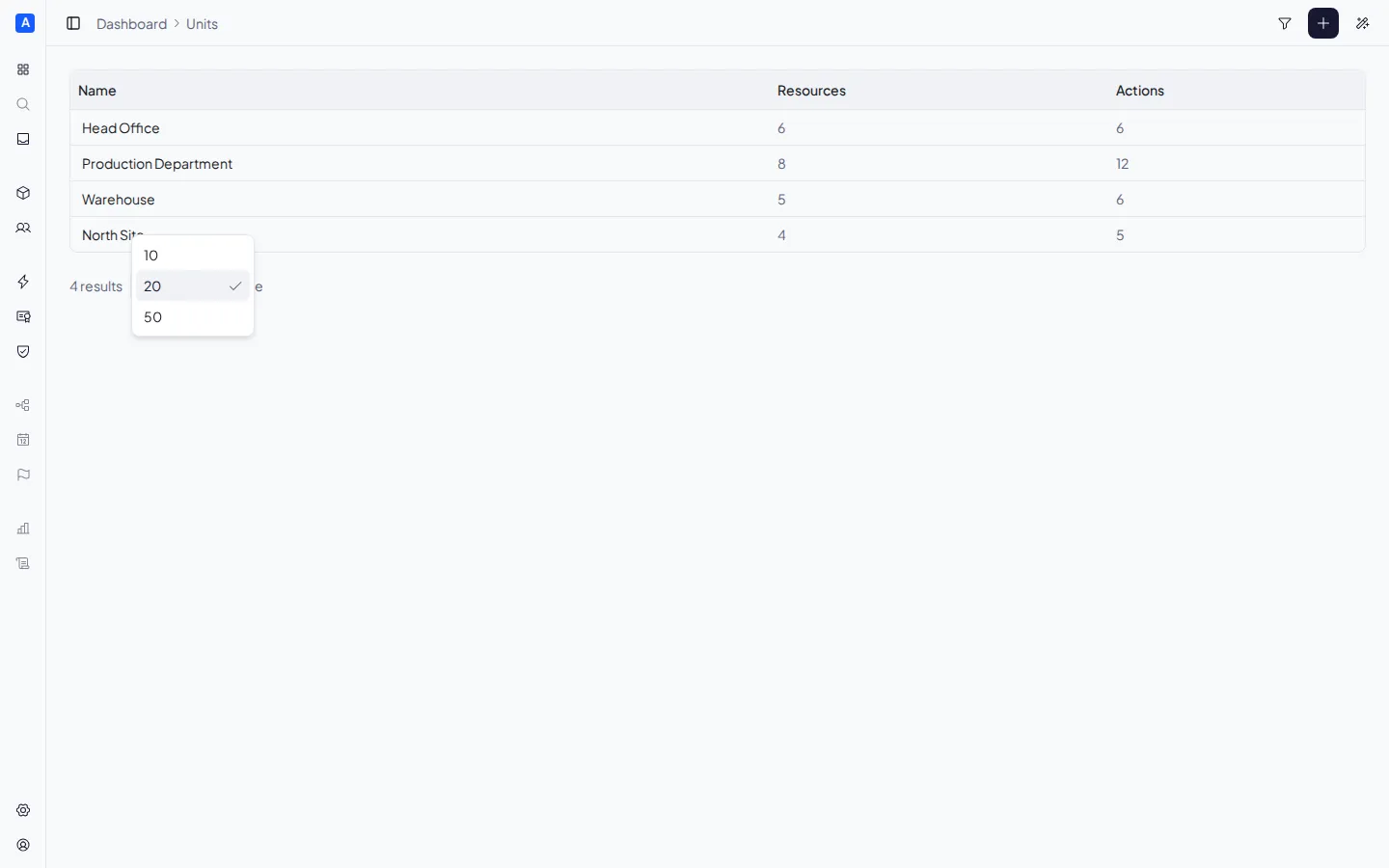
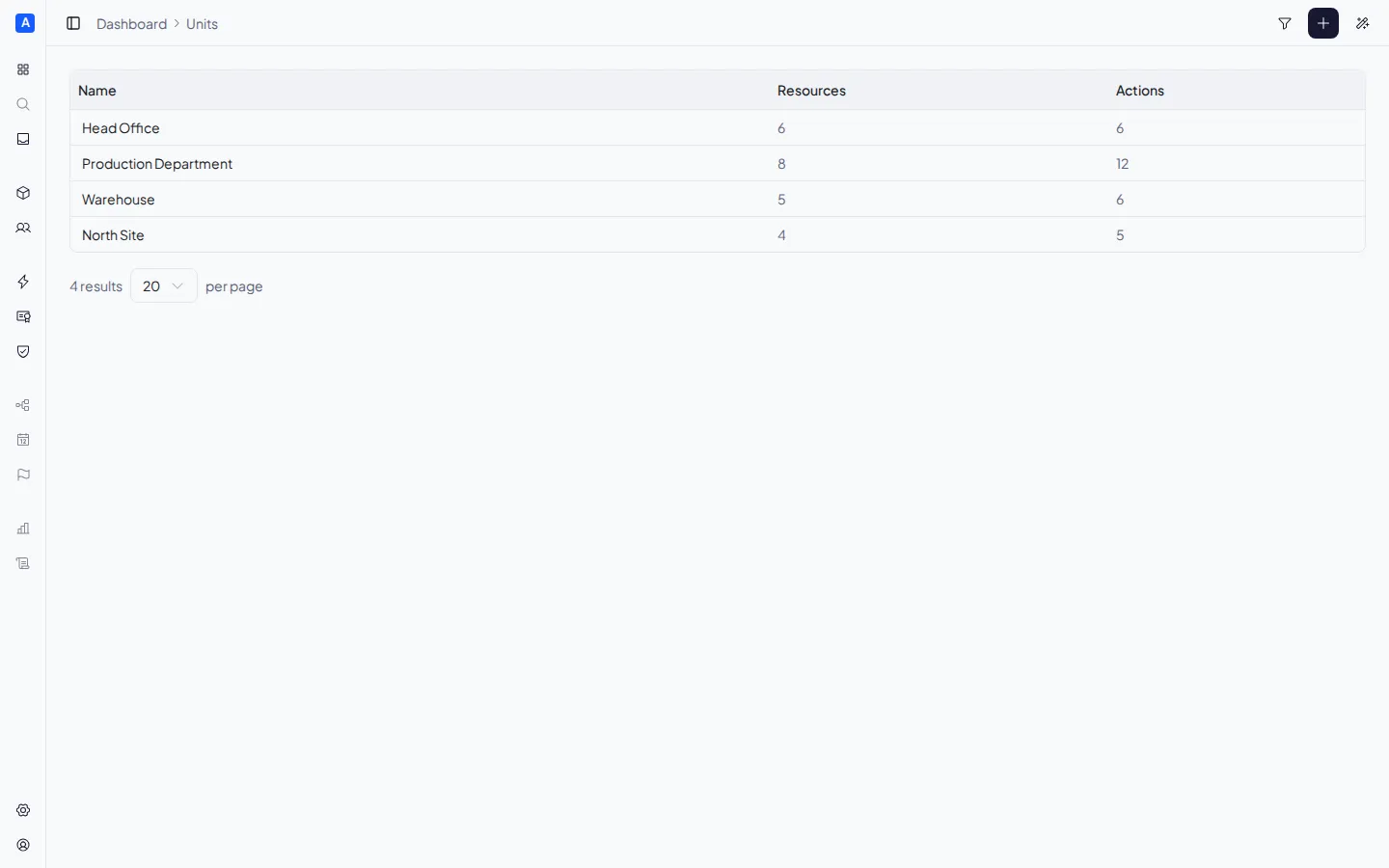
Create the units you need. For example:
- Head Office
- Production Department
- Warehouse
2. Register resources
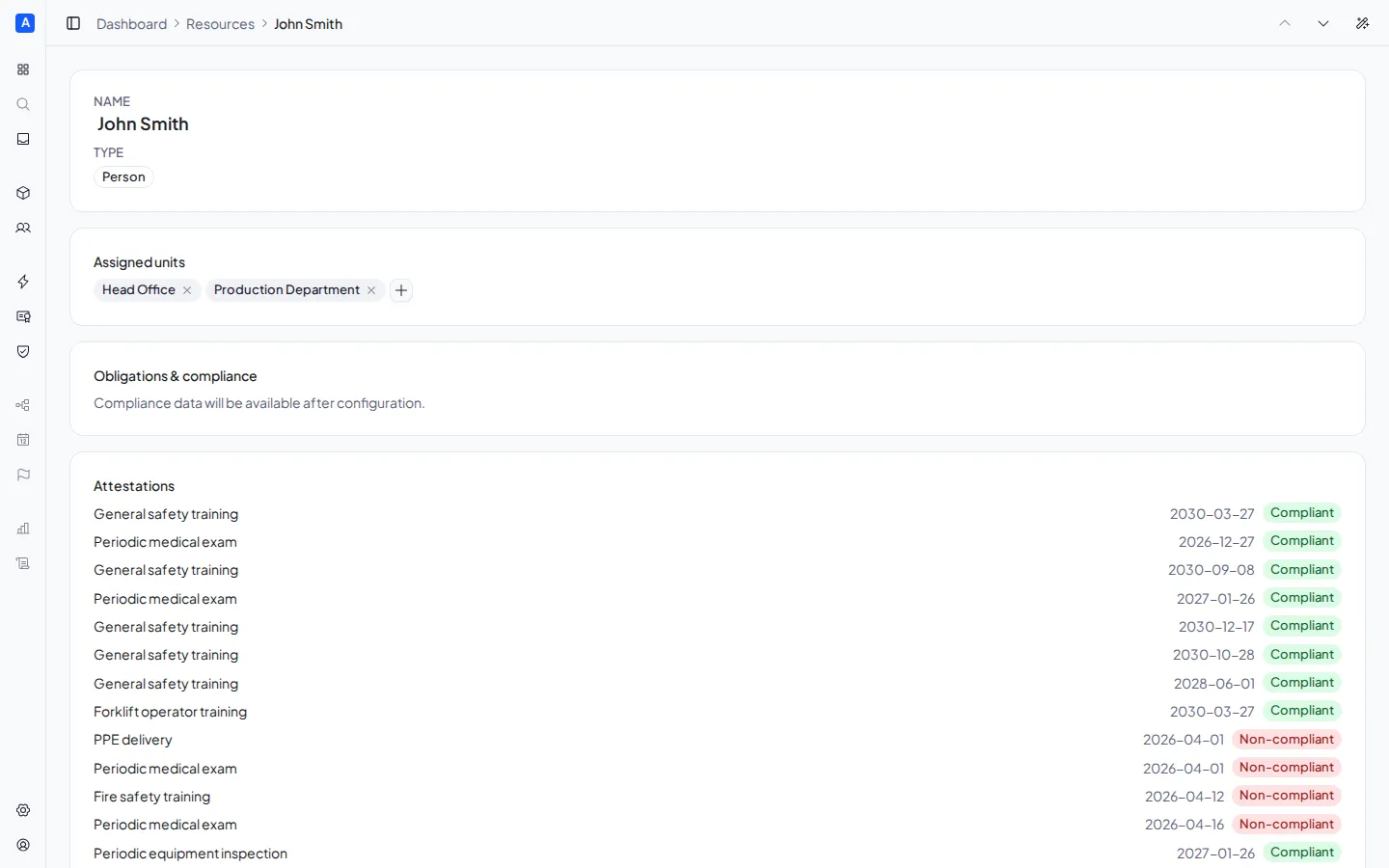
Section titled “2. Register resources”Resources are the people, equipment, environments, and substances you need to monitor.
Go to the Resources page and click + New resource. Choose the type (Person, Equipment, Environment, Substance) — note that the type cannot be changed after creation.
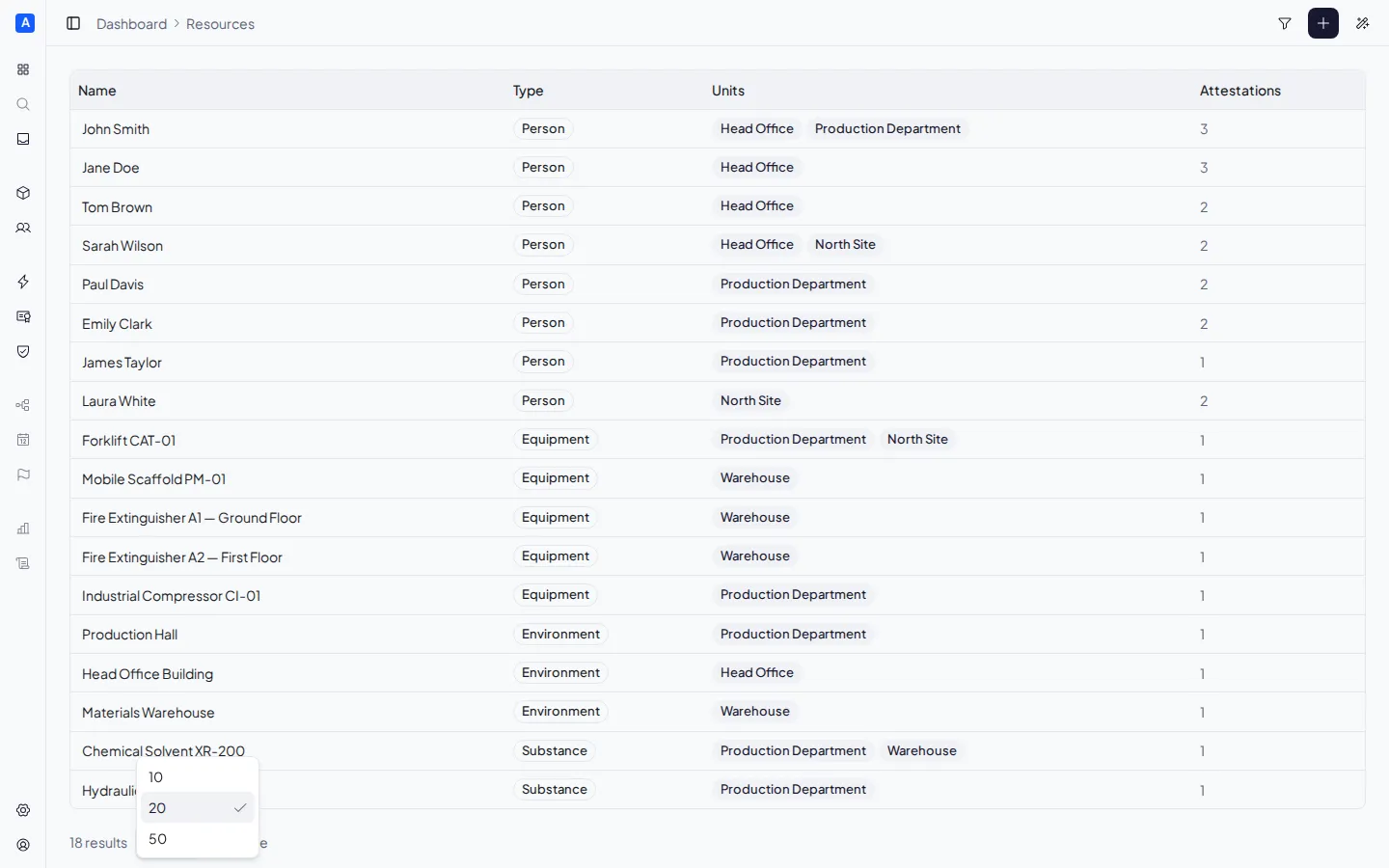
Then assign each resource to its units from the detail panel.
3. Define actions
Section titled “3. Define actions”Actions are the mandatory compliance requirements: training courses, health checks, periodic inspections, PPE, maintenance.
Go to the Actions page and click + New action. For each action, specify:
- The type (Training, Health, Inspection, PPE, Maintenance)
- The target resource type — which type of resource it applies to
- The validity period — how often it expires (e.g., 5 years, 12 months)
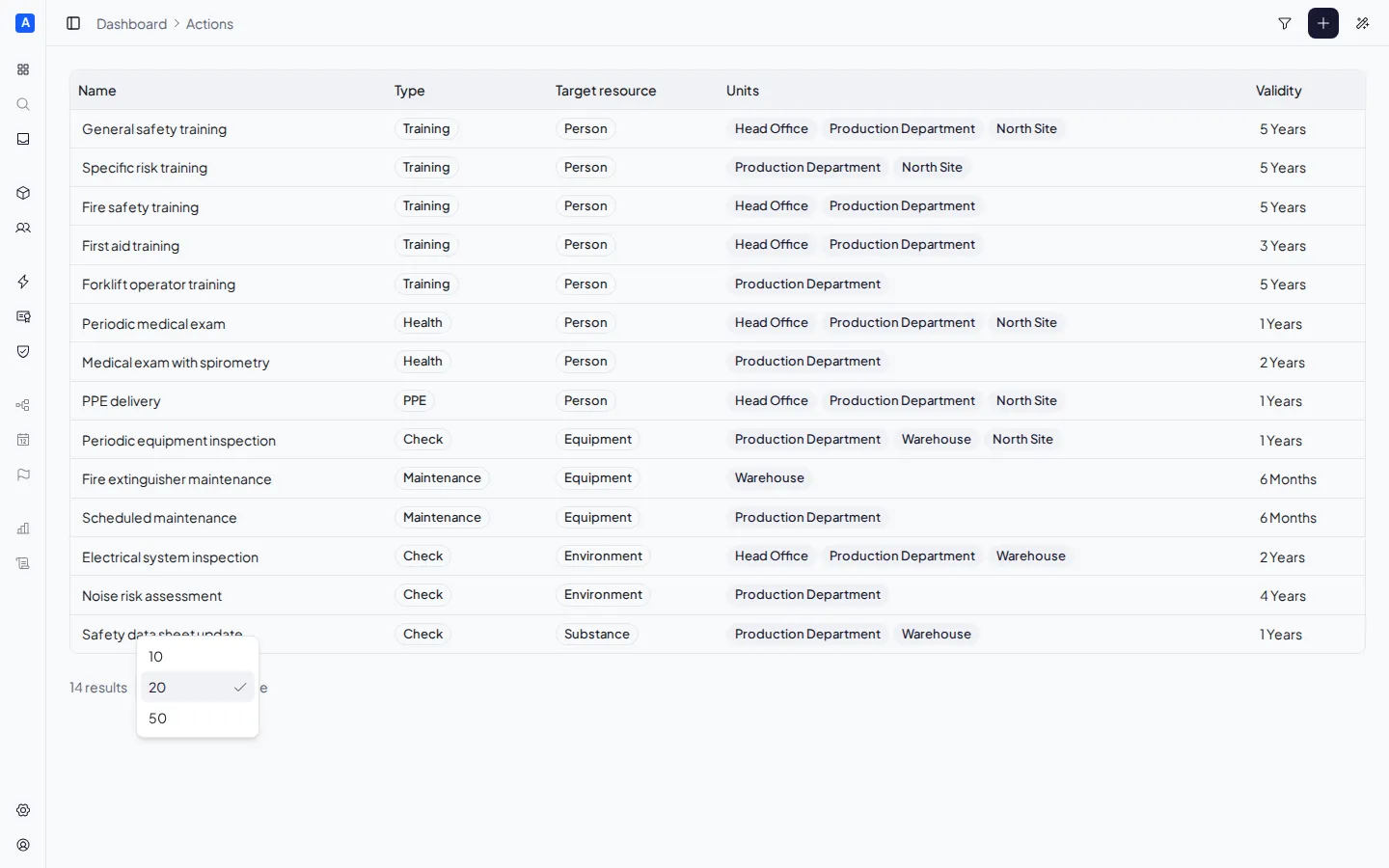
Then assign the actions to units. This is the key step: when a unit has both resources and actions with a compatible type, compliance obligations are generated automatically.

4. Issue certificates
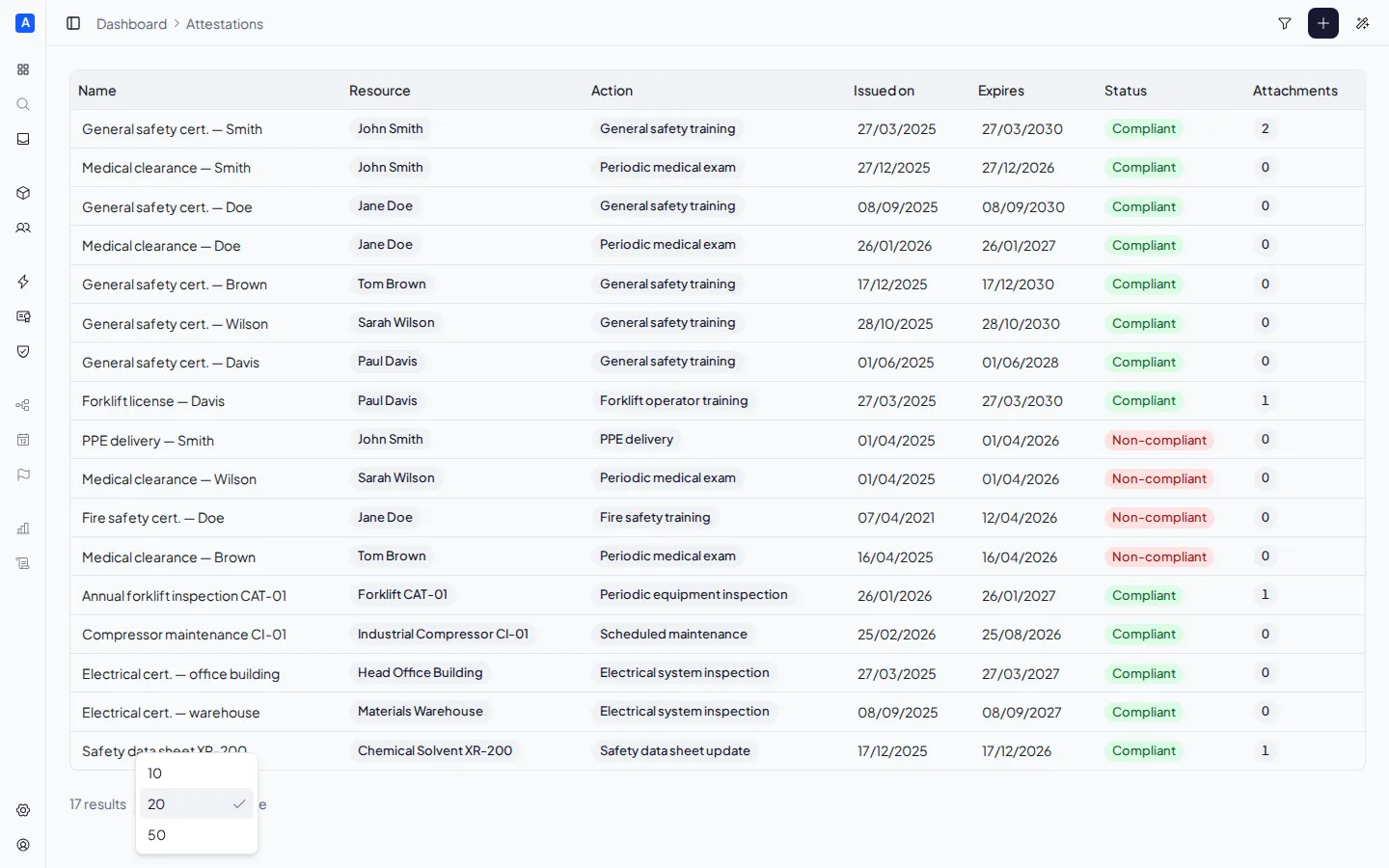
Section titled “4. Issue certificates”Now that obligations exist, you can record the certificates that satisfy them.
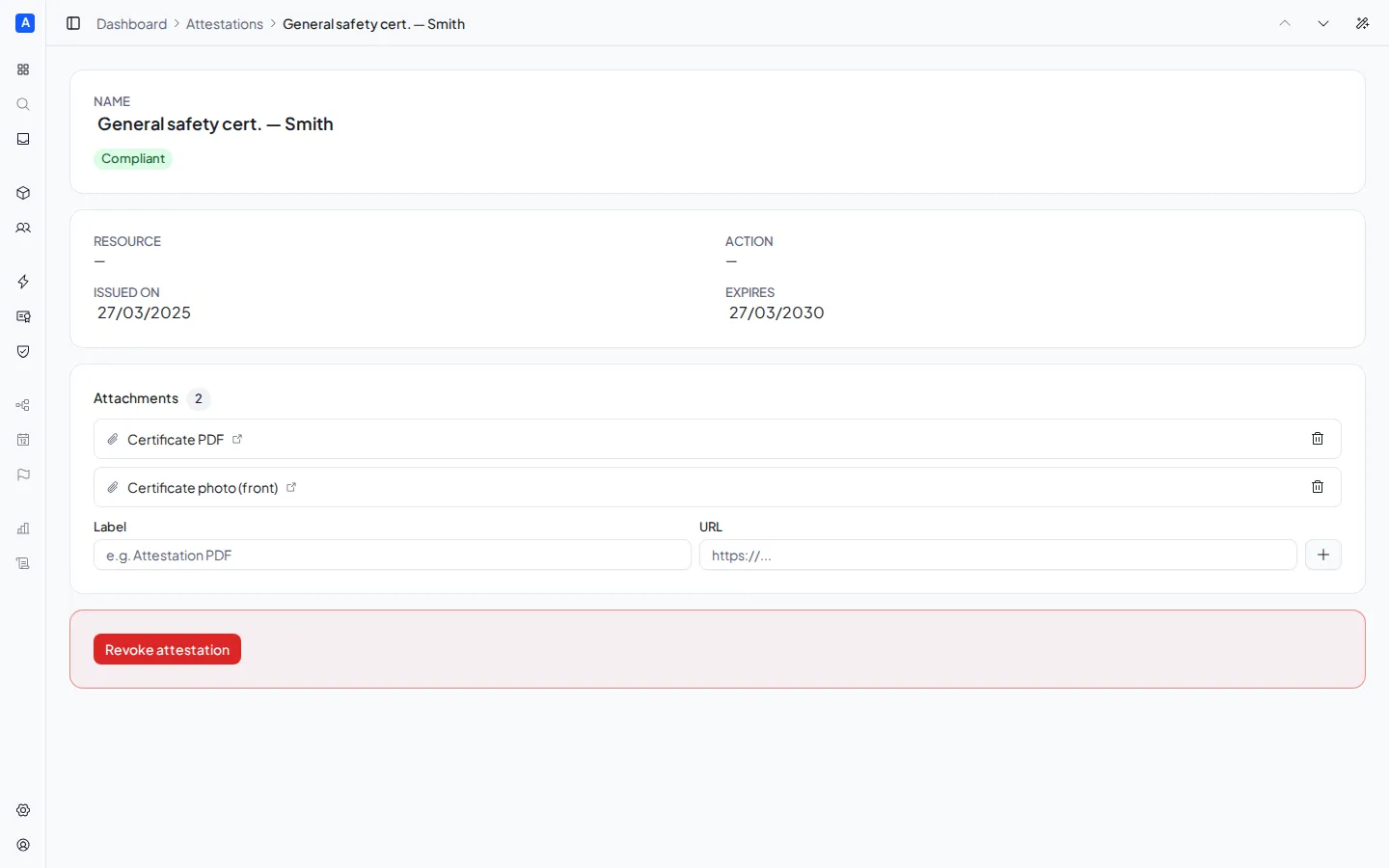
Go to the Certificates page and click Issue certificate. Select the resource and the action — the expiry date is automatically calculated from the action’s validity period.
You can also add attachments (links to external documents) from the detail panel.
5. Monitor compliance
Section titled “5. Monitor compliance”Go back to the Dashboard to see the summary: how many obligations you have, how many are compliant, how many are expiring soon, and how many are non-compliant.
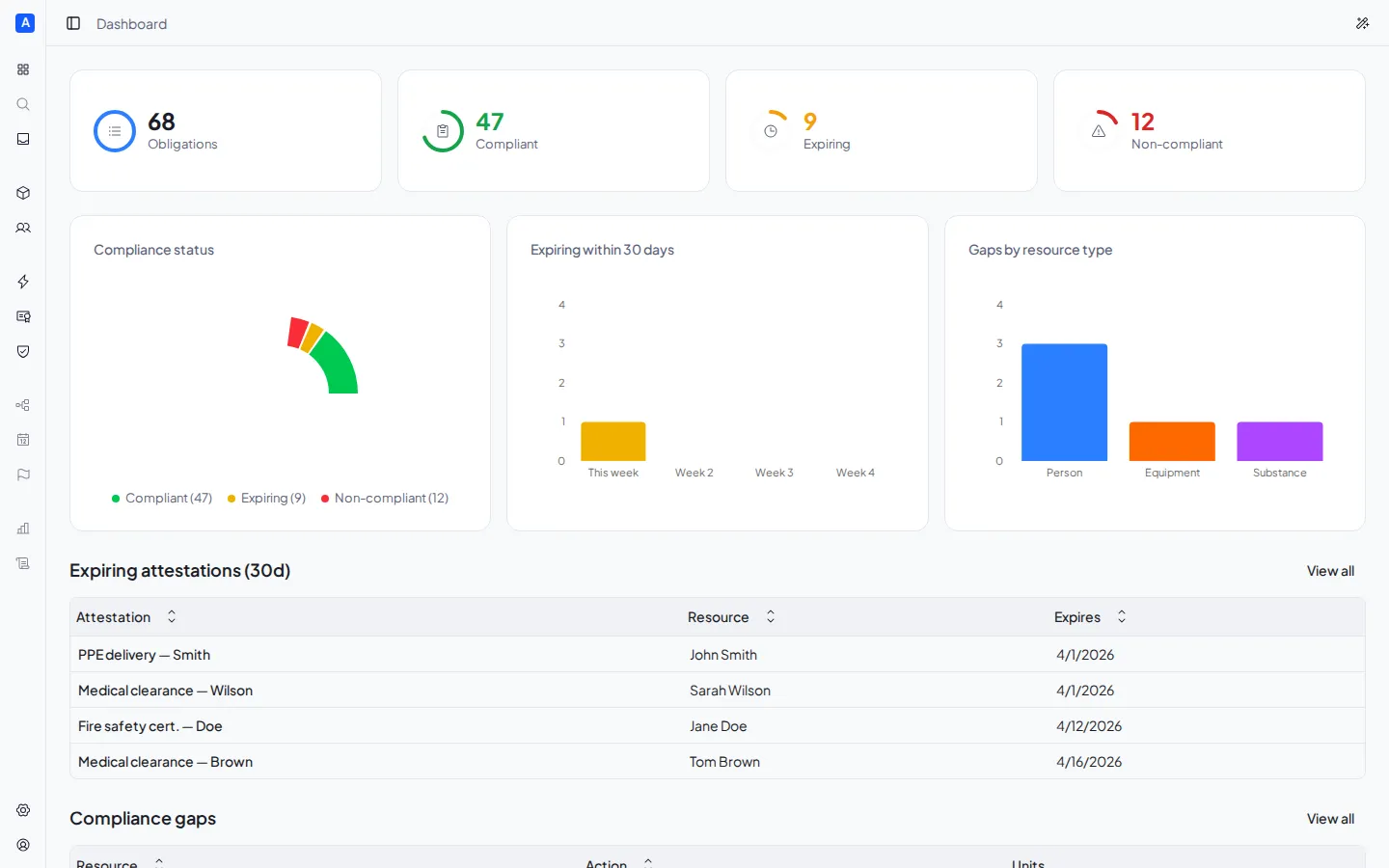
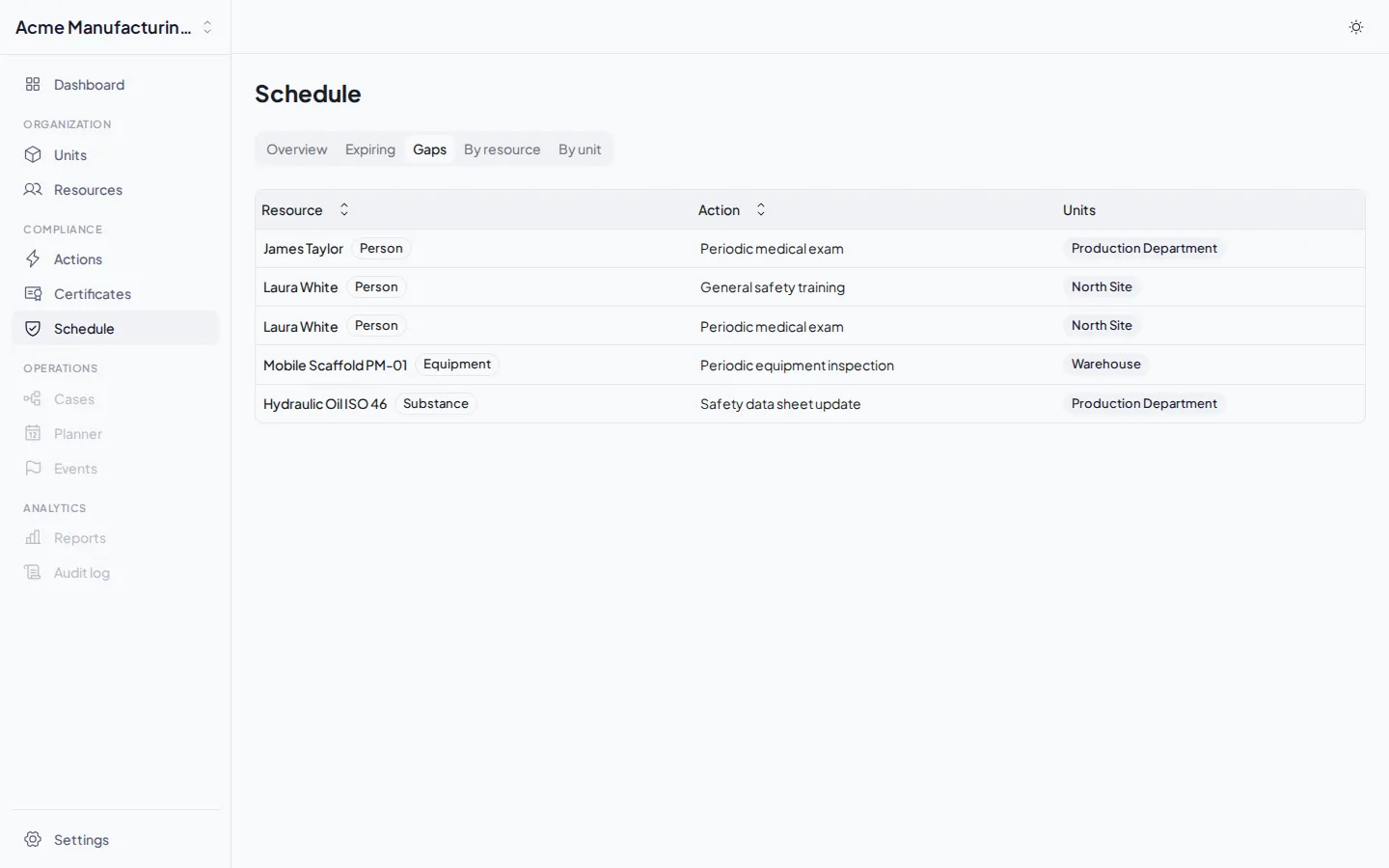
For a more detailed analysis, go to the Compliance page:
- Overview — overall numbers and compliance percentage
- Expiring — certificates that are about to expire
- Gaps — obligations without a valid certificate
- By resource — the status of a single person or piece of equipment
- By unit — the status of an entire department or site