

Managing certificates
The Certificates section lets you record and manage compliance certificates. To learn more about the certificate concept, see the Certificates page.
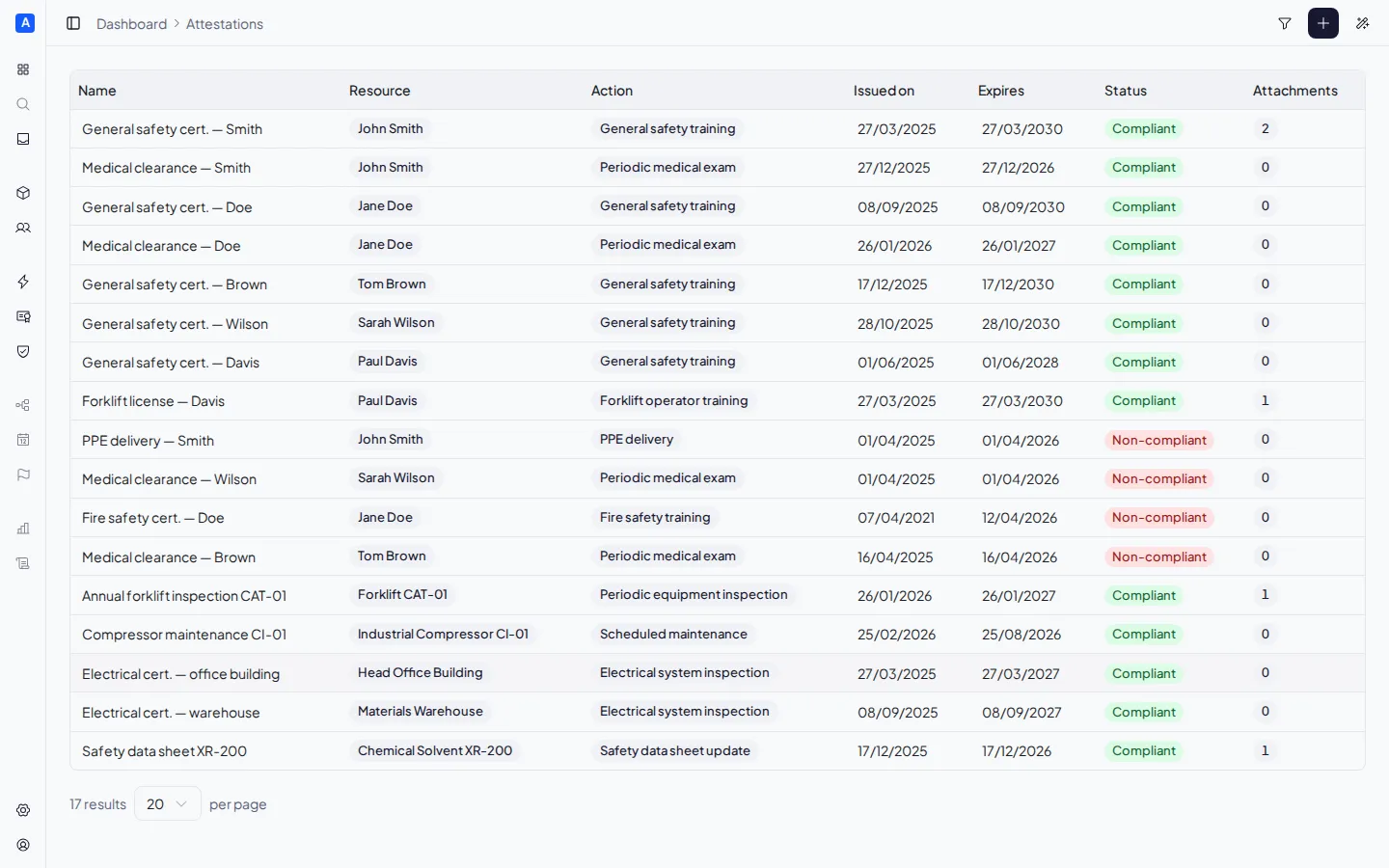
Certificate list
Section titled “Certificate list”The page displays a table with all certificates, showing for each:
- Name — the certificate name (editable inline)
- Resource — the associated resource
- Action — the certified requirement
- Issued on — the issue date (editable inline)
- Expires — the expiry date (editable inline)
- Status — Compliant, Expiring, or Non-compliant
- Attachments — the number of attachments
You can search certificates by name and filter by status. Columns are sortable by clicking the header.
Issuing a certificate
Section titled “Issuing a certificate”Click the “Issue attestation” button in the top right. Fill in:
- Resource — select the resource
- Action — select the requirement (automatically filtered by compatible resource type)
- Name — give the certificate a name
- Issue date — the date it was issued (default: today)
- Expiry date — automatically calculated from the selected action’s validity period, but can be edited manually
The issue date must be equal to or earlier than the expiry date. The expiry is pre-calculated based on the validity period of the selected action: for example, if the action has a 5-year validity and the issue date is today, the expiry will be 5 years from now.
Editing a certificate
Section titled “Editing a certificate”Click a certificate in the list to open the detail panel.
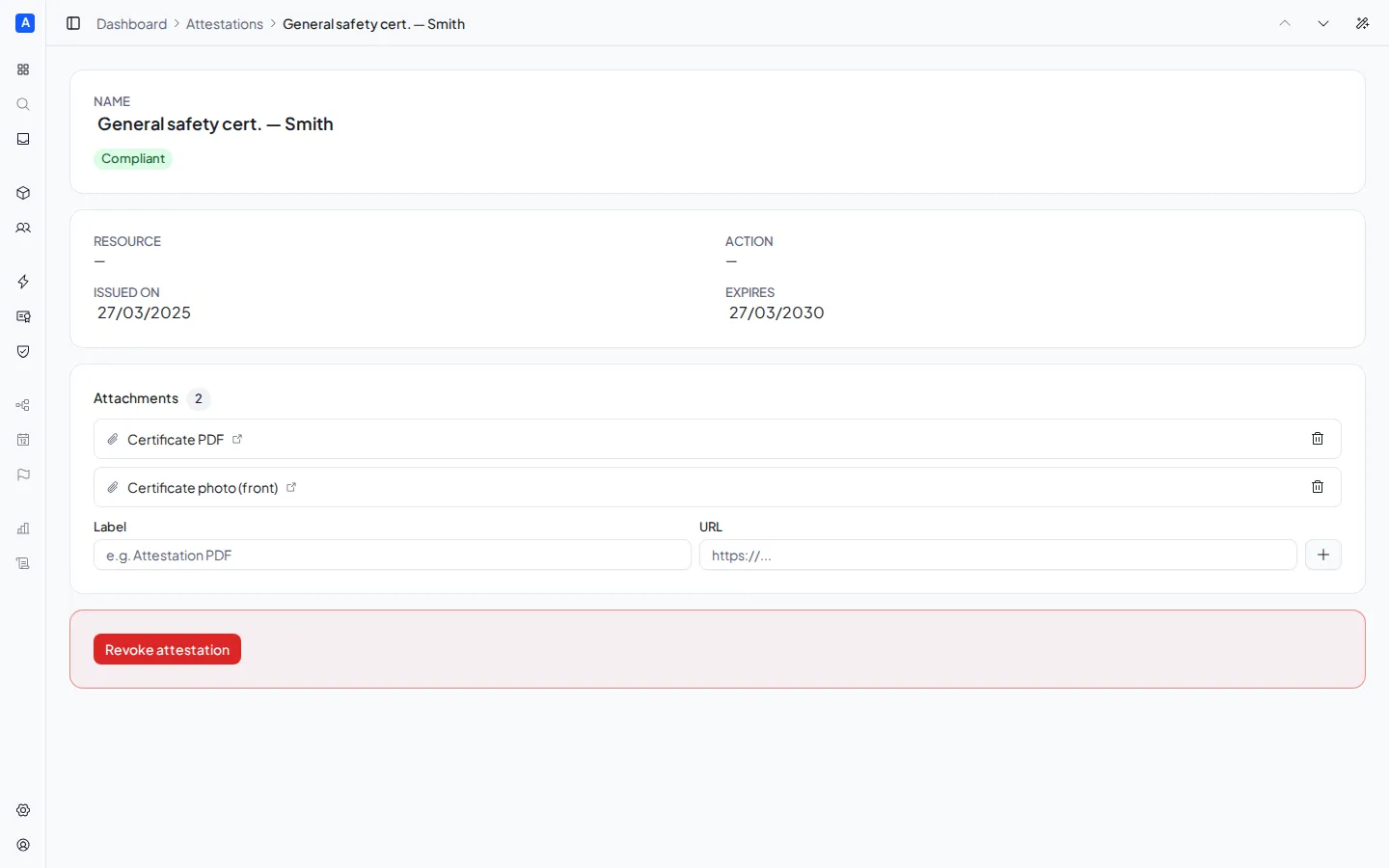
From here you can:
- Rename the certificate
- Change the dates (issue and expiry)
- Add attachments — enter a label and a URL to link documents
- Remove attachments — click the trash icon next to the attachment
Revoking a certificate
Section titled “Revoking a certificate”From the detail panel, click Revoke certificate and confirm. Revocation is irreversible: the certificate is deleted and the corresponding compliance obligation returns to “Non-compliant” status.