

Managing actions
The Actions section lets you manage compliance requirements (training, health checks, inspections, PPE, maintenance). To learn more about the action concept, see the Actions page.
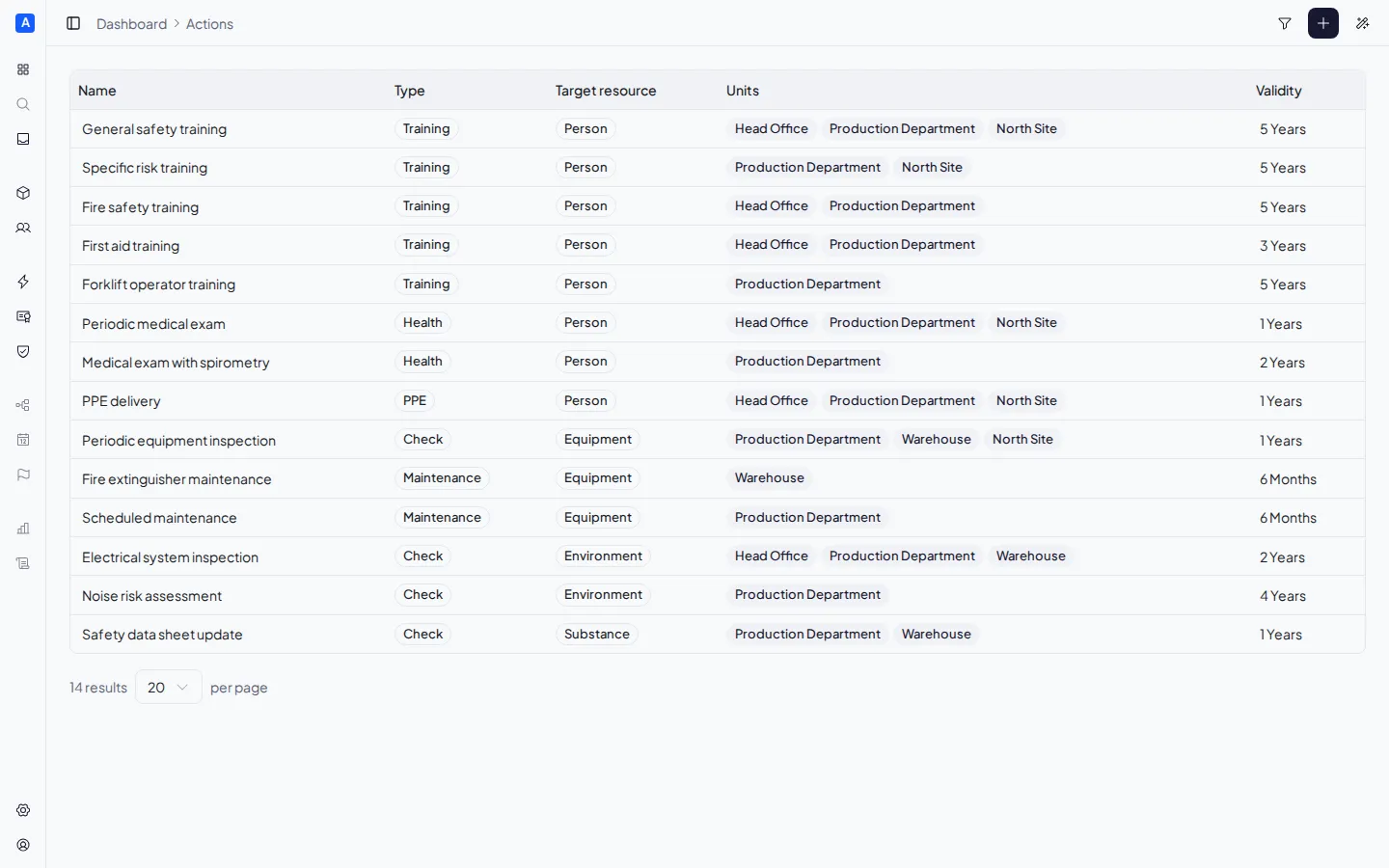
Action list
Section titled “Action list”The page displays a table with all actions, showing for each:
- Name — the action name (editable inline)
- Type — Training, Health, Inspection, PPE, or Maintenance
- Target resource type — the type of resource it applies to (Person, Equipment, etc.)
- Validity — the validity period (editable inline)
- Units — the number of units it is assigned to
You can search actions by name and filter by type. Columns are sortable by clicking the header.
Creating an action
Section titled “Creating an action”Click the ”+ New action” button in the top right. Fill in:
- Name — the name of the requirement
- Type — the category (Training, Health, etc.)
- Target resource type — the type of resource it applies to
- Validity — duration and unit of measure (years, months, days)
The type and target resource type cannot be changed after creation — see Actions for why this constraint exists.
Editing an action
Section titled “Editing an action”Click an action in the list to open the detail panel.

From here you can:
- Rename the action by clicking on the name field
- Change the validity by clicking on the validity field
- View and manage associated units
- View the certificates issued for this action, with status and expiry date
Assigning to units
Section titled “Assigning to units”From the detail panel, in the Associated units section, you can add or remove the association between the action and units. Compliance obligations are automatically generated for resources of the compatible type already assigned to the same unit.
Deleting an action
Section titled “Deleting an action”From the detail panel, click Delete action and confirm. Deleting removes the action and all its associations with units.